
This feature serves to access and review all submissions made by your organization (e.g., tenders, indicative tenders, requests to participate, etc.).
1. Tile "Completed Submissions"
You can search/ add the "Completed Submissions" tile using the search bar "What would you like to do?" or the "plus" icon. After clicking on this tile, a form with a list of procurement procedures will appear.

The list of completed submissions also includes all recorded paper submissions for all procurement procedures within the NEN system. In the "Source" column, it is indicated whether the submission was made via the NEN system or the Zakázky GOV portal. To view submission details, click the "Select" button.
%20elektronick%C3%BDch%20pod%C3%A1n%C3%AD6AJ.png?cb=5f83e588d1dd96c877baf71cdbbe4410)
The submitted tender form will be displayed.
If the deadline for submitting tenders, indicative tenders or requests to participate has not yet expired, it is possible to withdraw the submission from the displayed submission detail. Any potential repeated submission must be performed again properly and within the specified deadline.
%20elektronick%C3%BDch%20pod%C3%A1n%C3%AD8AJ.png?cb=52ca7091b302f72b03a0617b4f8e05c7)
2. Tile "My Electronic Operations"
You can search/ add the "My Electronic Operations" tile using the search bar "What would you like to do?" or the "plus" icon.
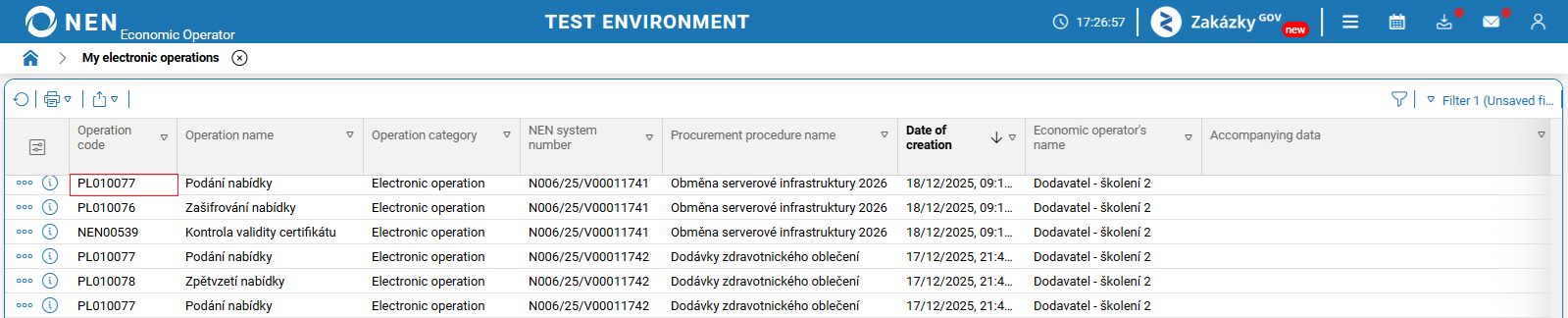
You can also check the submission in electronic operations through the "My Electronic Operations" tile. For example, the submission of a tender has the electronic operation code "PL010077".
3. Notifications
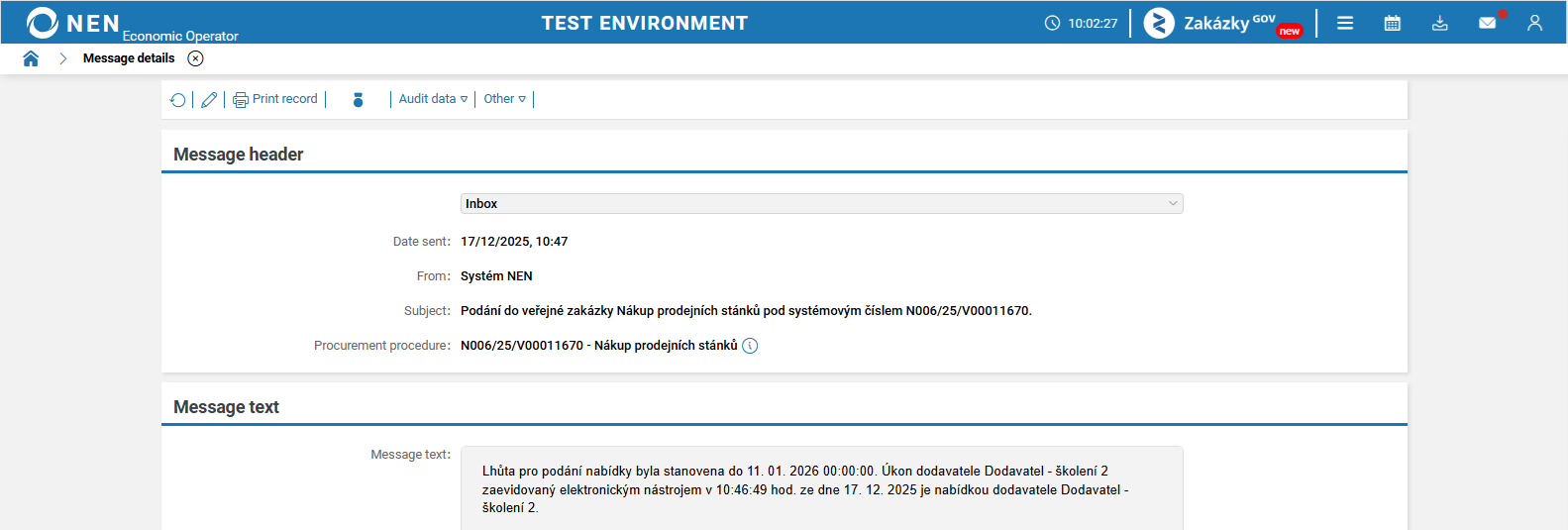
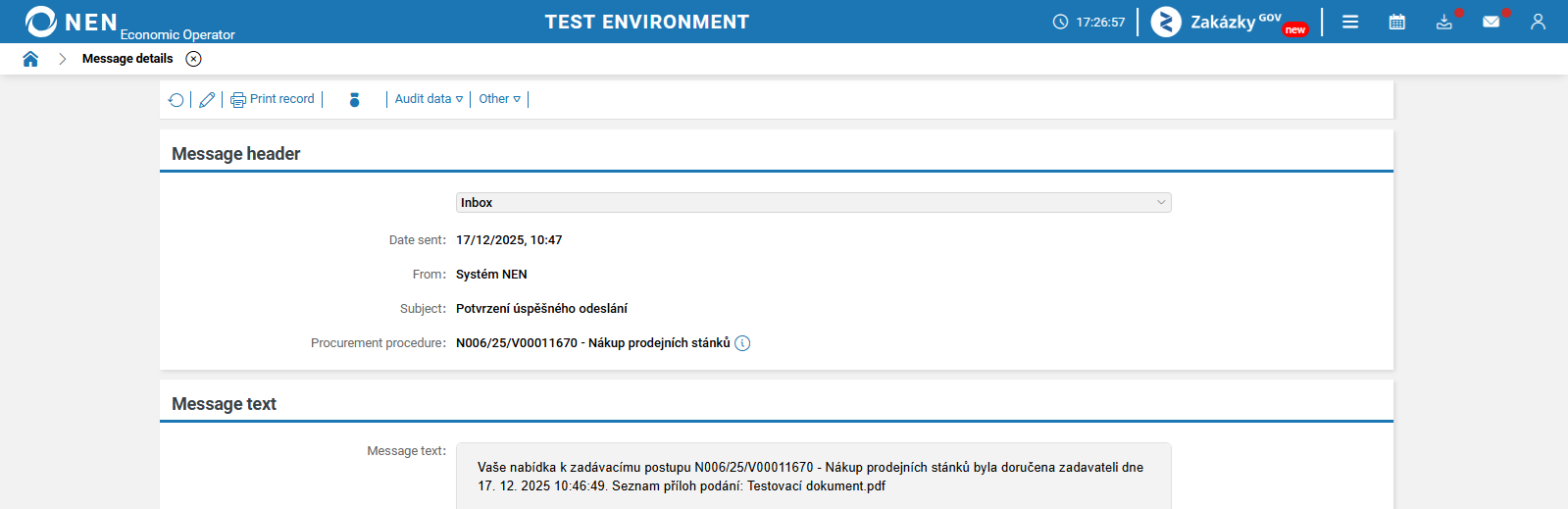
Two notifications about the completed submission will be delivered to the NEN system and email (if you have set up external notifications).
-
Submission to the procurement procedure
-
Confirmation of successful submission - this notification also includes a list of attachments. The content of the attached files cannot be checked after submission, only a list with the file names will be displayed.
4. "Economic operator’s actions" → "Overview of submissions made"
-
After submitting, you can review the submission directly within the procurement procedure by clicking "Economic operator’s actions" → "Overview of submissions made".
%20elektronick%C3%BDch%20pod%C3%A1n%C3%AD2AJ.png?cb=706babdfb3a76f4c81db2be6e2dc6ab5)
-
The "Completed submissions" form will be displayed, showing a list of procurement procedures in which a submission has been made.
%20elektronick%C3%BDch%20pod%C3%A1n%C3%AD4AJ.png?cb=24b1dd2d1cf743ae17ea5c071430505c)