
Individual submission types are described below and are available based on the specific type of a procurement procedure in its various phases and life cycles. Submission can only be made by a person with the assigned role of "Participant of a procurement procedure".
In case that the contracting authority requires the attachment of an electronic signature during submission, it is necessary to install the Crypto native app NG and Crypto web Extension add-ons (available for download here).
You can verify the correctness of your electronic signature through the compatibility test on the public portal of the NEN system.
It is not necessary to install these add-ons for encrypting electronic submissions.
Submissions can be made from various locations in the NEN system, and the subsequent form will be identical.
1. Main screen - tab "Procurement Procedures"
In the white field on the "All" or "My Procedures" folder, enter the number or name of the public contract. After pressing the enter key, procurement procedures that match the data you entered will be displayed. The NEN system even accepts spaces when searching for contracts. Using the "three dots" quick option button, you can submit a tender, withdraw a tender, or add or remove a procurement procedure from your procedures.

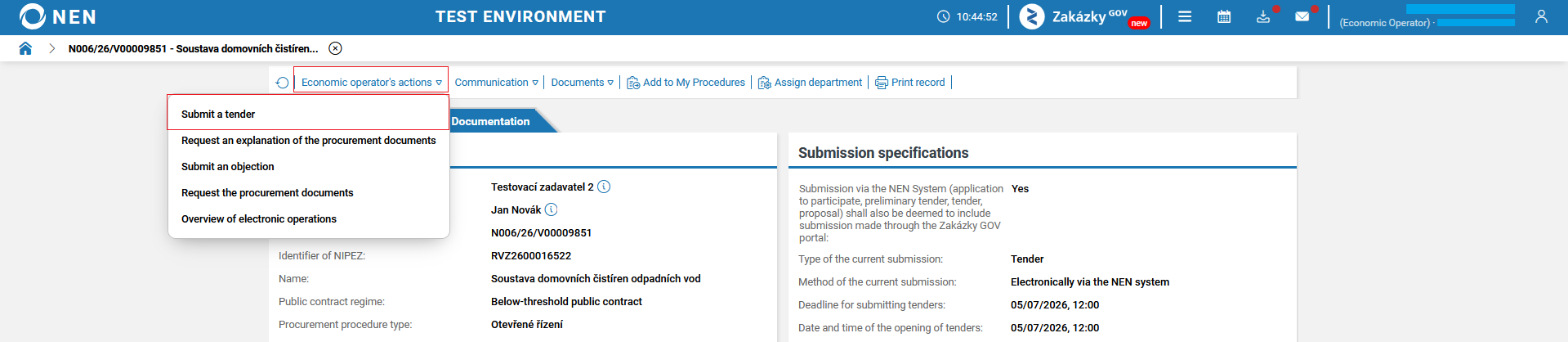
If you click on the "i" icon next to a procurement procedure, its details will appear. The "Submit a tender/ request to participate/ indicative tender" button is located under the option "Economic operator’s actions" in the top toolbar.
2. Tile "Make a Submission"
You can search/ add the "Make a Submission" tile using the search bar "What would you like to do?" or the "plus" icon. After clicking on this tile, folders "Only My Procedures" and "All" will appear. You can search for a particular procurement procedure using the filter.

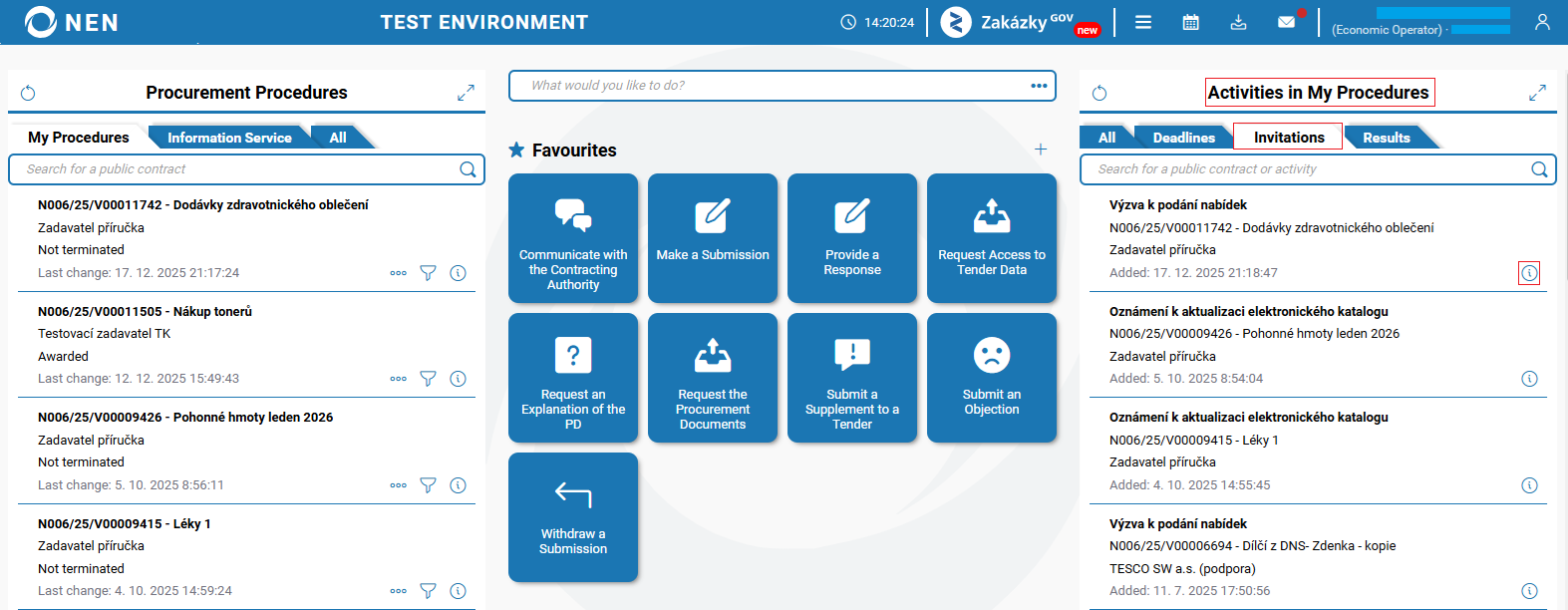
3. Tab "Activities in My Procedures" - invitation to submission
In the "Activities in My Procedures" tab (located on the main screen on the right) - the "Invitations" folder.
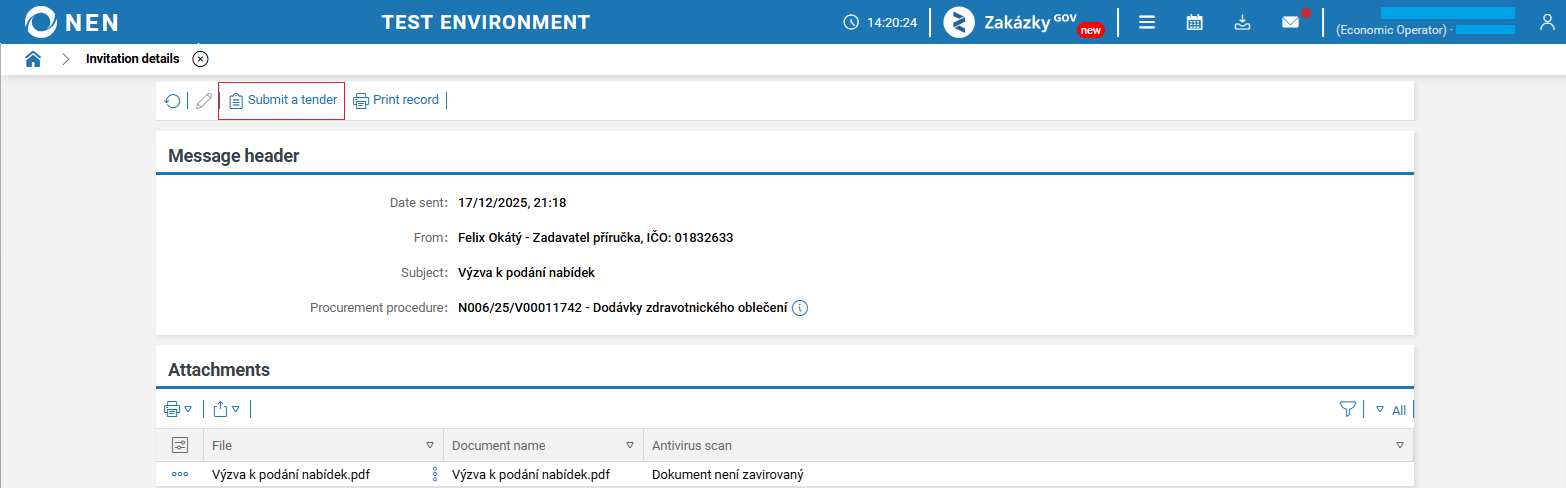
After opening the detail, you will find the "Submit a tender" button in the top toolbar.
The display of the "Tender" form depends on the settings of the contracting authority. However, process of completing and submitting the tender will always be analogically identical.
-
The tender form will be displayed, where you fill in the price and subsequently attach files.
If the economic operator is not a VAT payer, enter the same amount in the column for the price without VAT and the price with VAT. The NEN system will add a 0% VAT rate.
-
A form will be displayed where you will only upload files.
If it refers to a procurement procedure within the ZZVZ (or if the contracting authority sets it), encryption will be required. The NEN system will not allow you to submit the tender without it.
The number of uploaded files is not limited, however, the total size of individual files must not exceed 2 GB, and at the same time, the size of each file must not exceed 2 GB. Multiple files can also be uploaded through a ZIP file (or alternatively, 7z, RAR), with the file size not exceeding 2 GB. If you need to insert a file of an unsupported format, you can create a ZIP file from it, which is already supported.
Permissible attachment formats are listed in the NEN System Operating Rules.
Individual submission types
Submission of an unencrypted tender
Submission of an unencrypted tender
-
In the tender form, in the "Information about the submission" section, the submission name is automatically pre-filled but it can be changed. Changing the tender’s name is not visible to the contracting authority and is solely for your better orientation. Information about encryption is also provided here.
-
In the "Details of the tender" section, fill in the tender price and, in the "Files" section, attach the necessary documents.

The content of the attached files is no longer possible to check after sending, only a list with the file names will be displayed. We recommend thorough verification before the actual submission.
-
If the contracting authority reserves the right to "Disclosure of the tender price or life cycle costs" in a way that their separate disclosure will be possible only after the evaluation of quality criteria, there will be two sections for uploading files in the tender form. In the first section, upload only files related to the tender price or life cycle costs. In the second section, upload all other files that do not contain the tender price or life cycle costs.

-
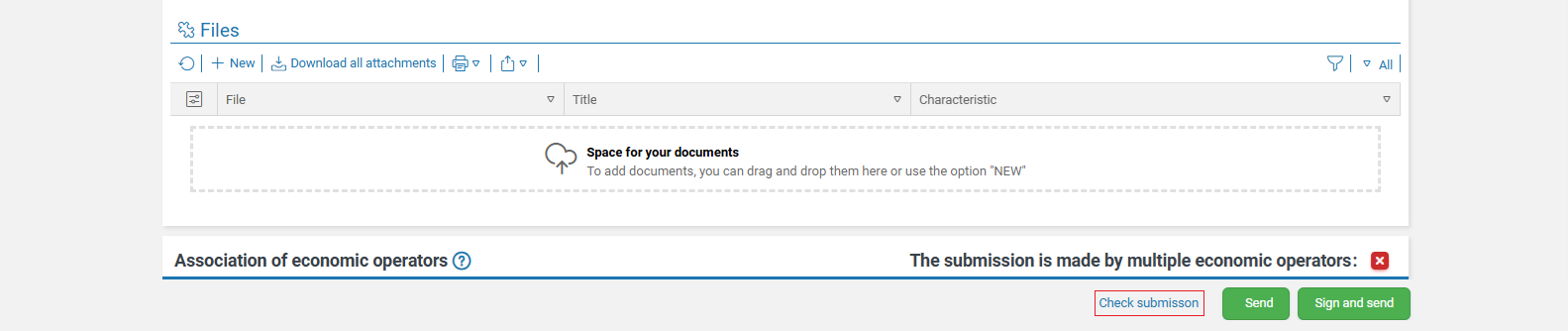
If the tender is submitted by multiple economic operators, please record this fact in the "Association of economic operators" section.

-
After filling in all the necessary data, you can have your submission checked before sending it by clicking on "Check submission" at the bottom of the tender form.
-
After filling in the tender form, confirm the tender submission by the "Send" or "Sign and send" button. With the latter option, the NEN system will prompt you to insert the signature certificate. In this case, it is necessary to have the signature add-ons (for download here).
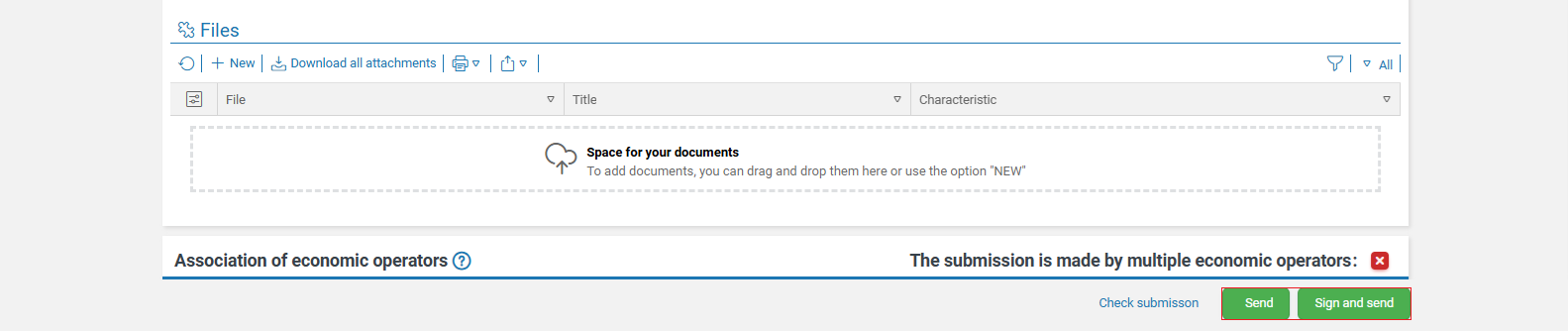
If it is delivered via the NEN system, the moment of delivery is considered the moment of sending. However, this represents the moment of completion of the whole sending process, specifically, the receipt of the submission by the NEN system, not the moment the "Send" button is pressed. Therefore, we recommend that economic operators take steps leading to such an action well in advance.
-
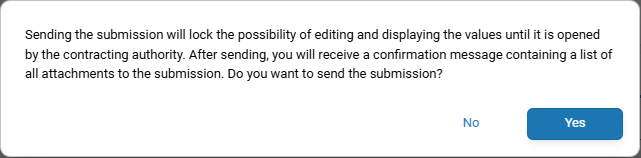
Subsequently, a notification will appear where you need to confirm the submission by pressing the "Yes" button.
-
Then, information along with a list of the attachments and submission date and time will be displayed.

-
After sending the tender, the submission date will be recorded on the form, the message "The tender has been submitted." will appear, and the "Withdraw the submission" button will be displayed.

-
In the list of submissions, there is an overview of all submissions made available. The NEN system does not allow the submission of multiple tenders in one procurement procedure.

Submission of an encrypted tender, request to participate, indicative tender
Submission of an encrypted tender, request to participate, indicative tender
-
After displaying the form, you will be automatically prompted to enter a password for encrypting the record - it is your arbitrary internal password (in case that you will create a draft and finish the submission later, it will be necessary to enter the password again). The encryption of the tender with the certificate from the contracting authority occurs automatically only when submitting the tender.

-
In the tender form, in the "Information about the submission" section, the submission name is automatically pre-filled but it can be changed. Changing the tender’s name is not visible to the contracting authority and is solely for your better orientation. Information about encryption is also provided here.
The content of the attached files is no longer possible to check after sending, only a list with the file names will be displayed. We recommend thorough verification before the actual submission.
-
In the "Details of the tender" section, fill in the tender price and, in the "Files" section, attach the necessary documents.

-
If the contracting authority reserves the right to "Disclosure of the tender price or life cycle costs" in a way that their separate disclosure will be possible only after the evaluation of quality criteria, there will be two sections for uploading files in the tender form. In the first section, upload only files related to the tender price or life cycle costs. In the second section, upload all other files that do not contain the tender price or life cycle costs.

-
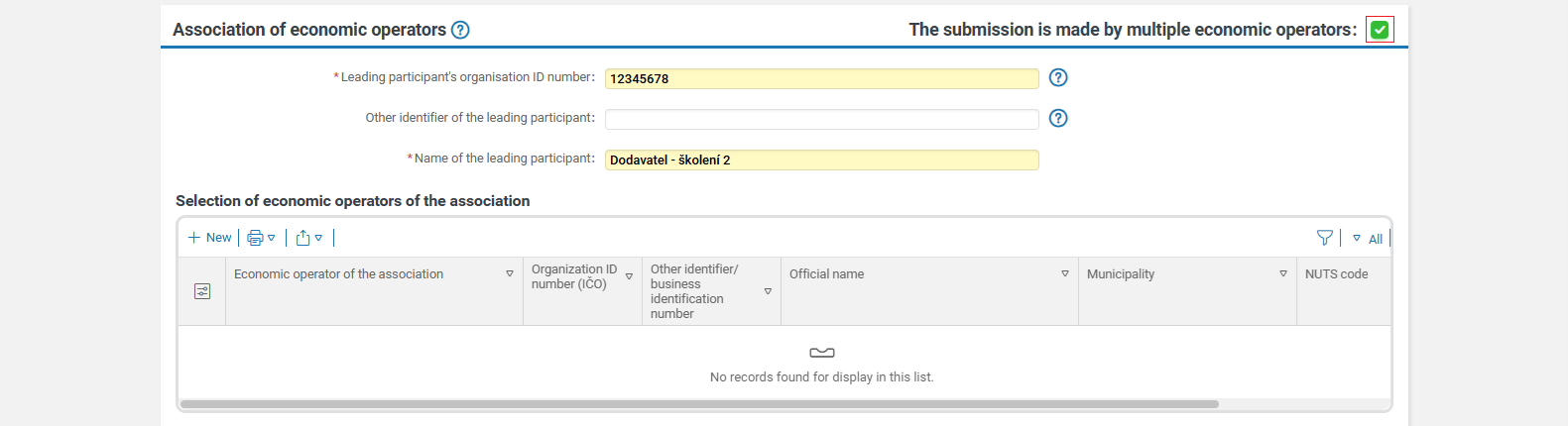
If the tender is submitted by multiple economic operators, please record this fact in the "Association of economic operators" section.
-
After filling in all the necessary data, you can have your submission checked before sending it by clicking on "Check submission" at the bottom of the tender form.

-
After filling in the tender form, you will confirm the tender submission by the "Send" or "Sign and send" button. With the latter option, the NEN system will prompt you to insert the signature certificate. In this case, it is necessary to have the signature add-ons (for download here).
If it is delivered via the NEN system, the moment of delivery is considered the moment of sending. However, this represents the moment of completion of the whole sending process, specifically, the receipt of the submission by the NEN system, not the moment the "Send" button is pressed. Therefore, we recommend that economic operators take steps leading to such an action well in advance.
-
Subsequently, a notification will appear where you need to confirm the submission by pressing the "Yes" button.

-
Encryption is done automatically, the NEN system pre-fills the encryption certificate from the contracting authority, and you only need to click on the "Encrypt" button.

-
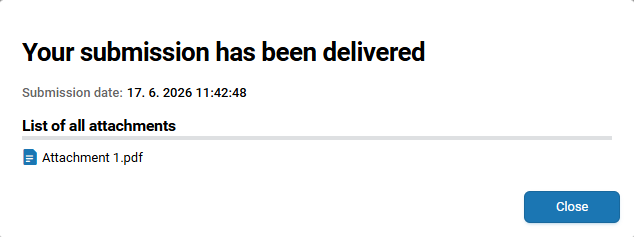
Then, information along with a list of the attachments and submission date and time will be displayed.
-
After sending the tender, the submission date will be recorded on the form, the message "The tender has been submitted." will appear, and the "Withdraw the submission" button will be displayed.

-
In the top toolbar, information about the used encryption certificate can be displayed for the encrypted tender. This information is available only until the contracting authority opens the tenders.

-
In the list of submissions, there is an overview of all submissions made available. The NEN system does not allow the submission of multiple tenders in one procurement procedure.

Submission of a tender, request to participate, indicative tender for public contracts divided into lots
Submission for lots
If a public contract is divided into lots, you must make a separate submission for each lot. Select the lot you are interested in, complete the form, and send the submission. Then select the next lot and repeat the process.
In this case, we recommend clicking on the detail of the particular procurement procedure through the "i" icon.

Subsequently, through the economic operator’s actions, select if you want to submit a tender/ request to participate/ indicative tender/ preliminary interest. A list of all lots will be displayed.

The "Submit a tender/ request to participate/ indicative tender/ preliminary interest" button is also available after clicking on the specific lot in the economic operator’s actions - submit a tender, etc.
Multi-phase procedure for a public contract divided into lots
If you are participating in another phase within a multi-phase procedure - you initially submitted, for example, a request to participate and now, in the next phase, you are submitting a tender - the submission is done through the procedure details. The option "Submit a tender" is no longer available under the "Economic operator’s actions" button. In this case, it is necessary to display the specific lot of the public contract in the "Lots of the public contract" folder using the "i" icon. Here, under the option "Economic operator’s actions" in the top toolbar, you need to select "Submit a tender".

Submission of a tender for individual items
Submission of a tender for individual items
In the case where the contracting authority has determined, during specification the procurement procedure, that the subject-matter items of the public contract will also serve as items of the tender, you will fill in prices for individual items when submitting the tender. You can fill in the prices directly in the "All" folder or in individual folders if specified by the contracting authority.
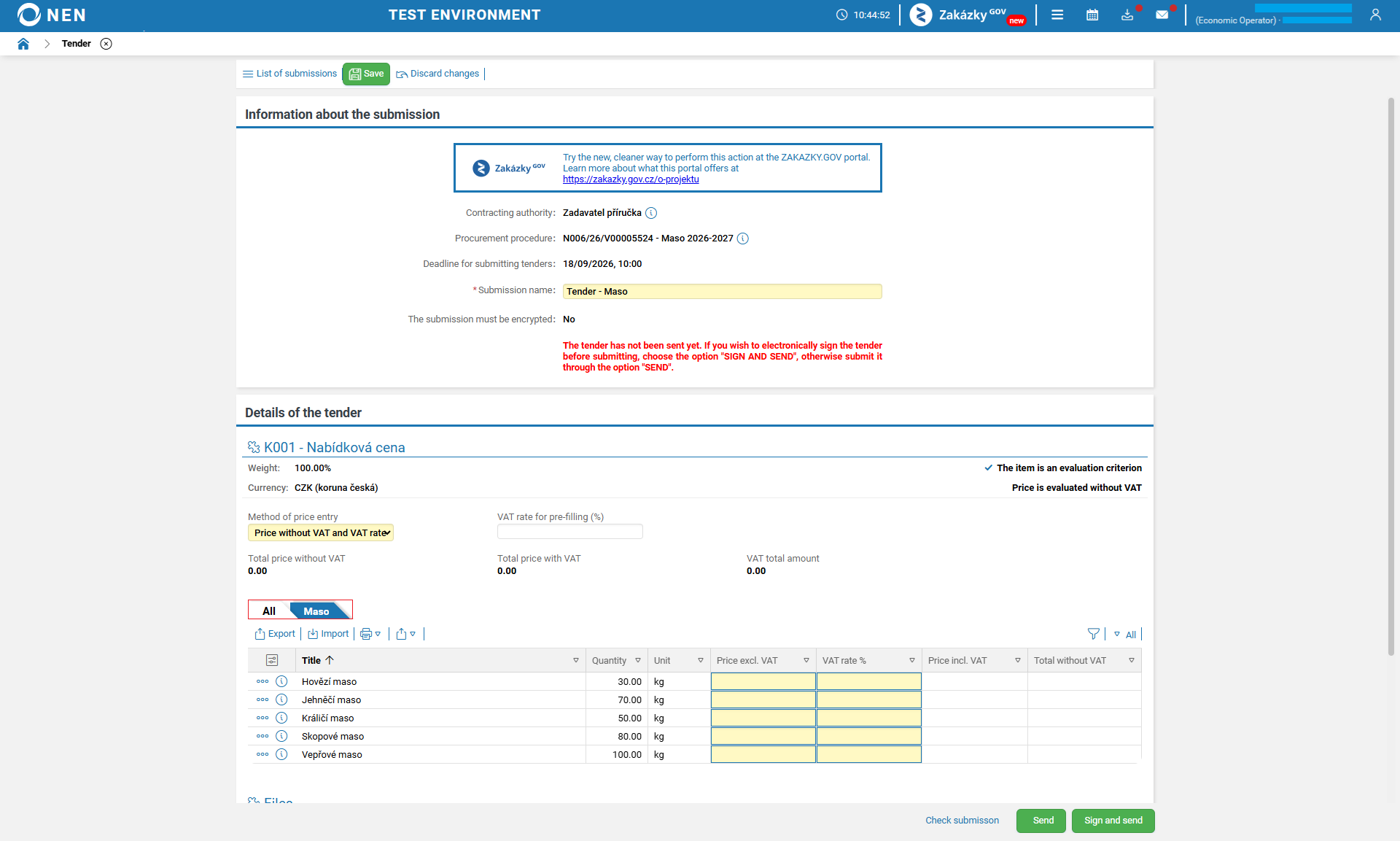
After filling in the prices for all items in the tender, the NEN system will automatically calculate the total tender price. You can insert the prices by downloading all items into MS Excel, filling in the downloaded file outside the NEN system, and then importing back into the NEN system. To download items into MS Excel, click on the "Export" button, and to upload the filled file, click on the "Import" button. This action can be repeated until the moment of submitting the tender.

The process of inserting file attachments and completing the submission is completely identical to the usual submission process.
Submission of a request to participate in an established DPS
Submission of a request to participate in an established DPS
Throughout the entire duration of the dynamic purchasing system, you have the opportunity to submit a request to participate, based on which you can be admitted to the dynamic purchasing system (see Section 140 of the ZZVZ).
-
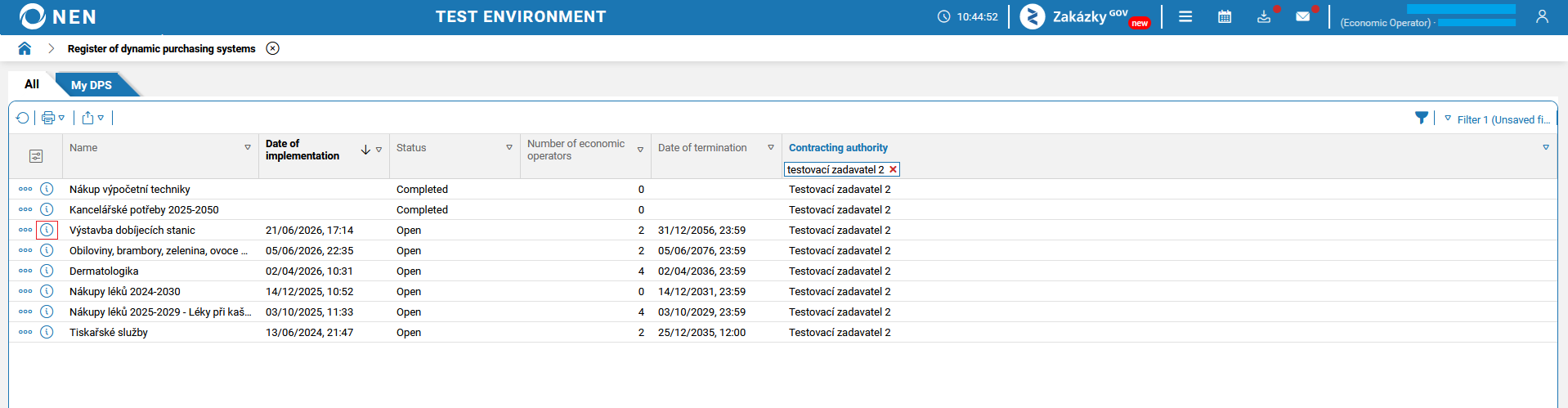
Search for the "Dynamic Purchasing Systems" tile and click on the DPS for which you would like to submit a request to participate.
-
The DPS details will appear.

-
On this form, click on the option "Economic operator’s actions" and select "Submit a request to participate".

-
After displaying the form, you will be automatically prompted to enter a password for encrypting the record - it is your arbitrary internal password (in case that you will create a draft and finish the submission later, it will be necessary to enter the password again). The encryption of the request to participate with the certificate from the contracting authority occurs automatically only when submitting the request.

-
In the form, in the "Information about the submission" section, the submission name is automatically pre-filled but it can be changed. Changing the request’s name is not visible to the contracting authority and is solely for your better orientation. Information about encryption is also provided here.
-
In the "Details of the request to participate" section, you will attach the necessary documents.
The content of the attached files is no longer possible to check after sending, only a list with the file names will be displayed. We recommend thorough verification before the actual submission.
-
After filling in all the necessary data, you can have your submission checked before sending it by clicking on "Check submission" at the bottom of the form.
-
After filling in the form, you will confirm the submission by the "Send" or "Sign and send" button. With the latter option, the NEN system will prompt you to insert the signature certificate. In this case, it is necessary to have the signature add-ons (for download here).

If it is delivered via the NEN system, the moment of delivery is considered the moment of sending. However, this represents the moment of completion of the whole sending process, specifically, the receipt of the submission by the NEN system, not the moment the "Send" button is pressed. Therefore, we recommend that economic operators take steps leading to such an action well in advance.
-
Subsequently, a notification will appear where you will confirm the submission by pressing the "Yes" button.

-
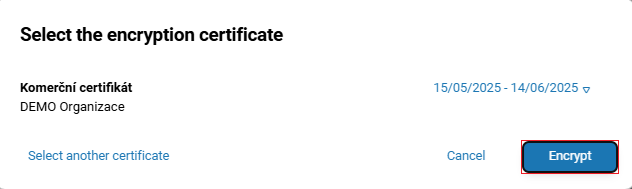
Encryption is done automatically, the NEN system pre-fills the encryption certificate from the contracting authority, and you only need to click on the "Encrypt" button.
-
Then, information along with a list of the attachments and submission date and time will be displayed.

-
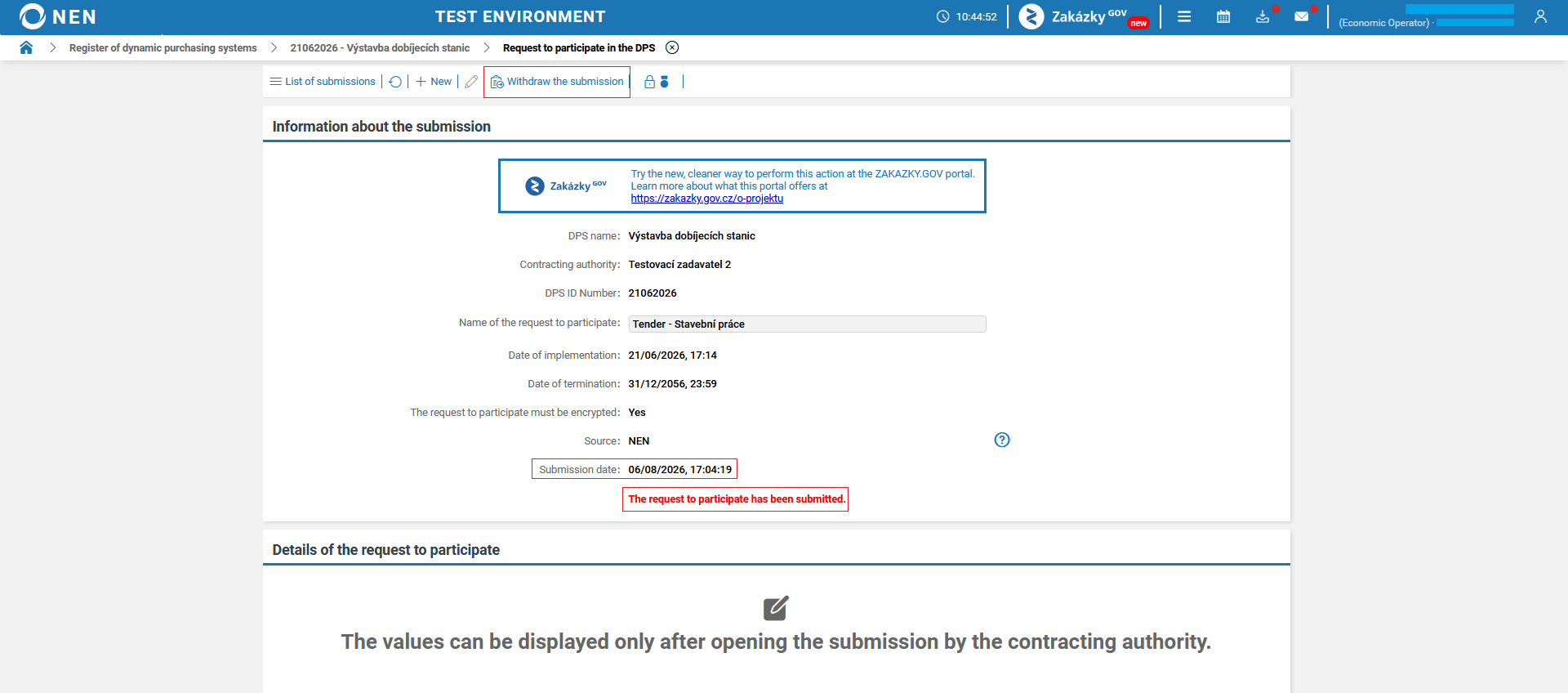
After sending the request to participate, the submission date will be recorded on the form, the message "The request to participate has been submitted." will appear, and the "Withdraw the submission" button will be displayed.
-
In the top toolbar, information about the used encryption certificate can be displayed for the encrypted request to participate. This information is available only until the contracting authority decrypts the submission.

-
In the list of submissions, there is an overview of all submissions made available. The NEN system does not allow the submission of multiple requests to participate.

Once the contracting authority includes the economic operator in the DPS, the DPS you selected will be displayed under the “My DPS” folder.
Variants of indicative tenders/ tenders
Variants of indicative tenders/ tenders
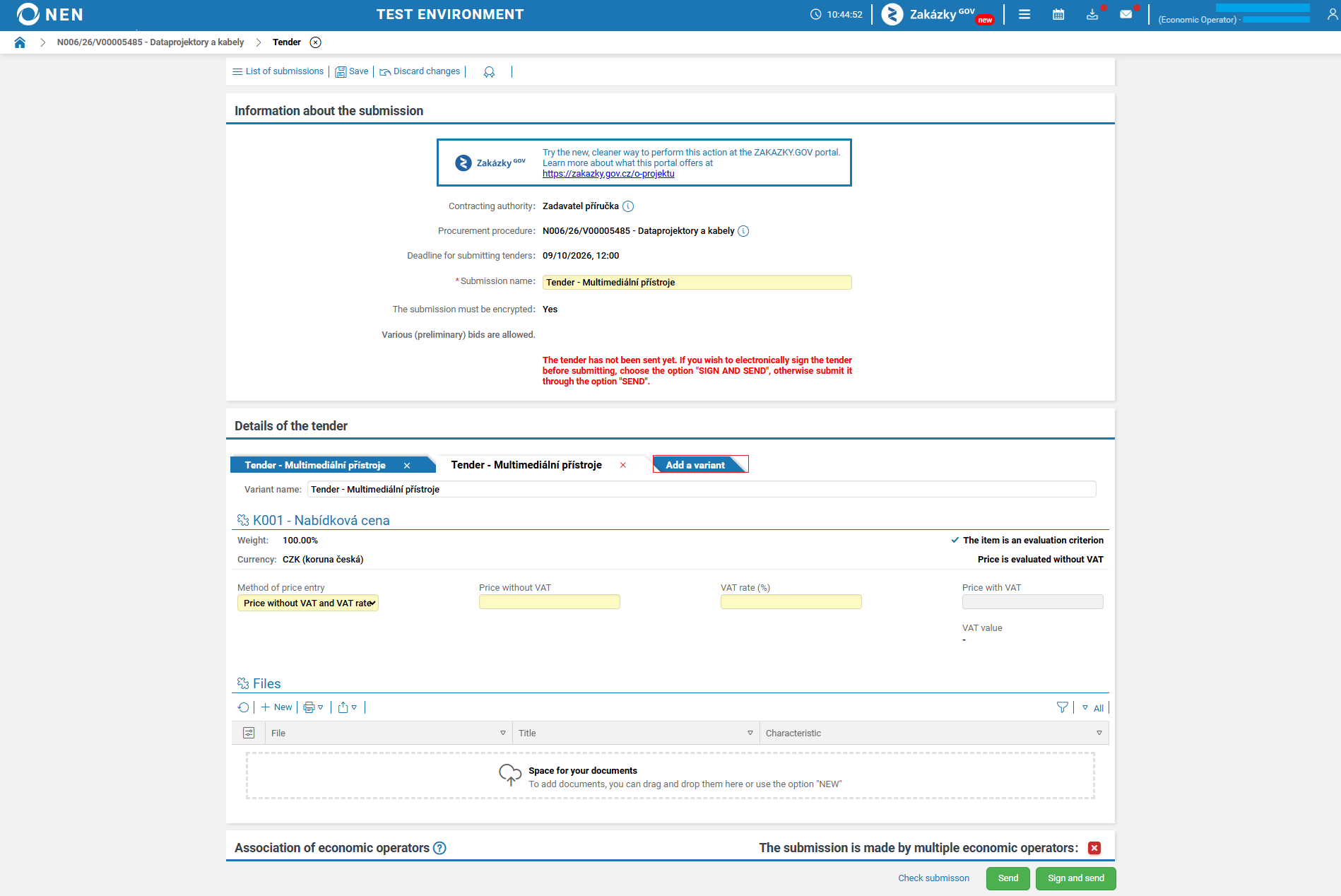
If the contracting authority allows submitting variant indicative tenders or tenders, you can create multiple tender variants within a single electronic submission by clicking on the "Add a variant" button. Forms for individual variants are identical. The process of inserting file attachments and completing the submission is completely identical to the usual submission process.
Supplement to a tender, provision of performance, draft of a contract (framework agreement)
Invitation to supplement a tender
-
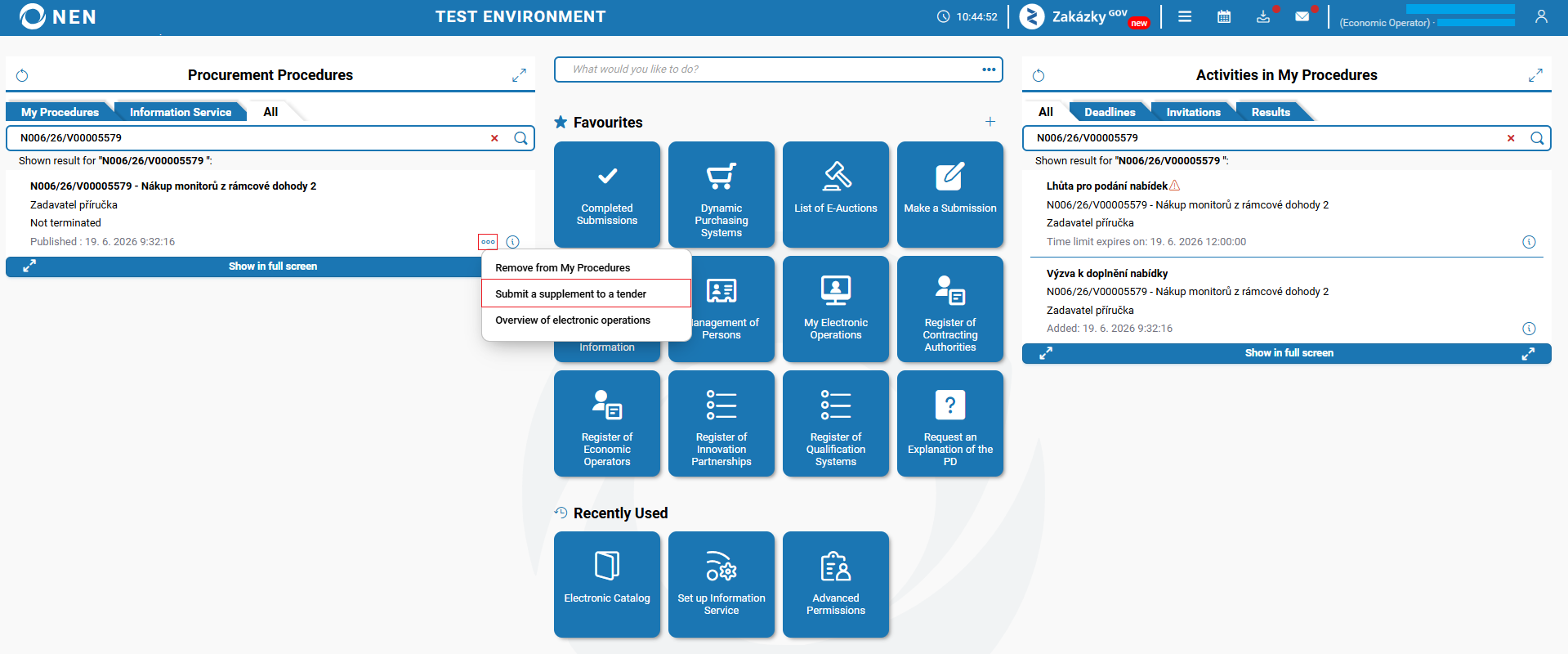
Search for the relevant procurement procedure and select the option "Submit a supplement to a tender" (this can also be done through the tile with the same name).
-
In the form, in the "Information about the submission" section, the submission name is automatically pre-filled but it can be changed. Changing the tender’s name is not visible to the contracting authority and is solely for your better orientation. Information about encryption is also provided here.
-
In the "Details of the tender" section, attach the necessary documents.
The content of the attached files is no longer possible to check after sending, only a list with the file names will be displayed. We recommend thorough verification before the actual submission.

-
The process of completing the submission is completely identical to the usual submission process.
Invitation to provide performance
-
Search for the relevant procurement procedure and select the option "Acceptance of the invitation" or "Refusal to acceptance of the invitation" depending on the action you want to perform.

-
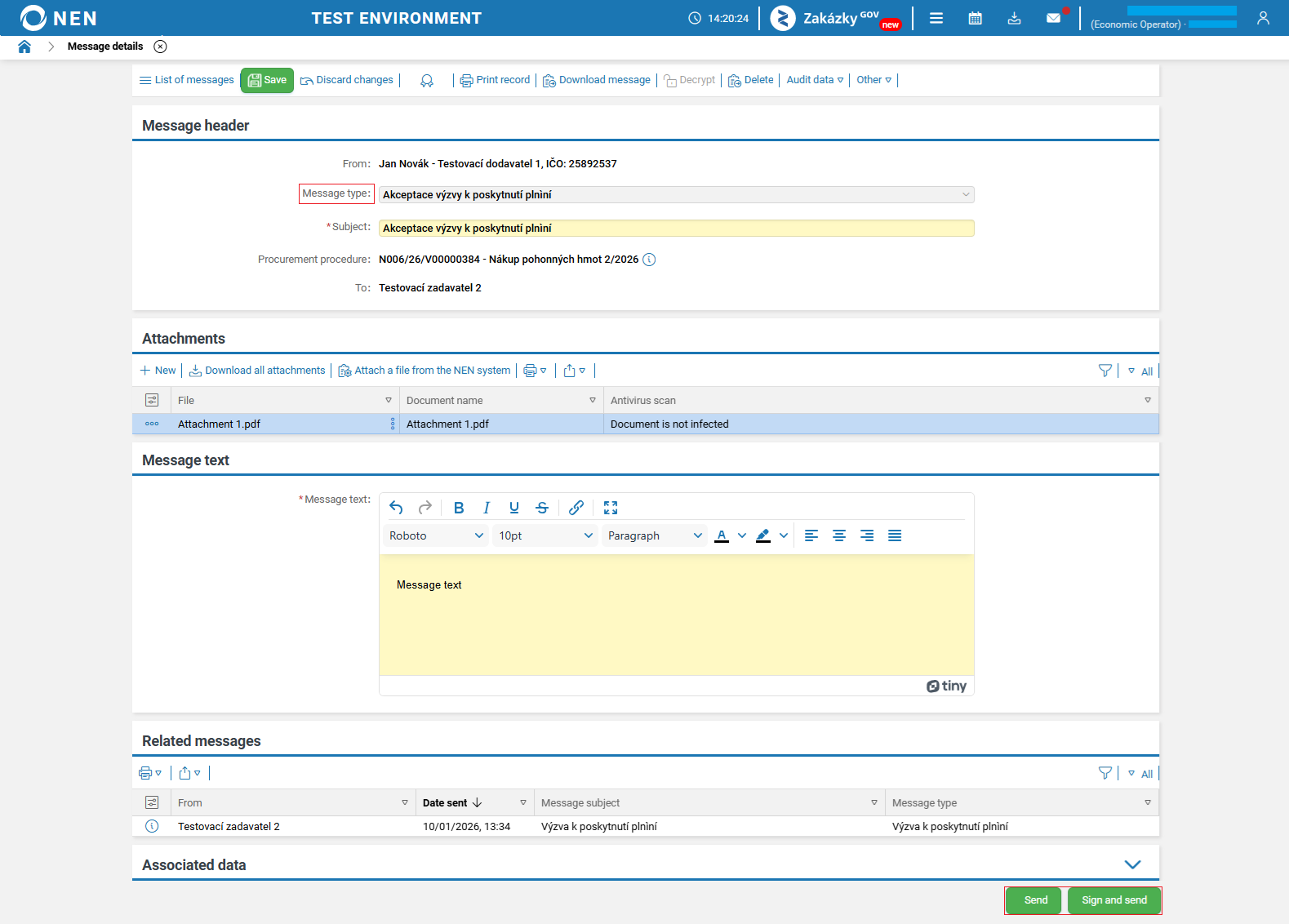
Based on the selected action, a new message will be created with the corresponding message type. After filling in the form, confirm by the "Send" or "Sign and send" button. With the latter option, the NEN system will prompt you to insert the signature certificate. In this case, it is necessary to have the signature add-ons (for download here).
-
Then, an informative notification about the successful submission will be displayed, and the NEN system will fill in the send date.

Invitation to submit a draft contract
In this case, it depends on how the contracting authority wishes the draft contract to be submitted (this information should be provided in the invitation). If the contracting authority has specified that they want to receive the draft contract via the NEN system, it is sufficient to create a new message.
Market research - provide a response
Market research - provide a response
-
Search for the relevant procurement procedure and select the option "Provide a response".
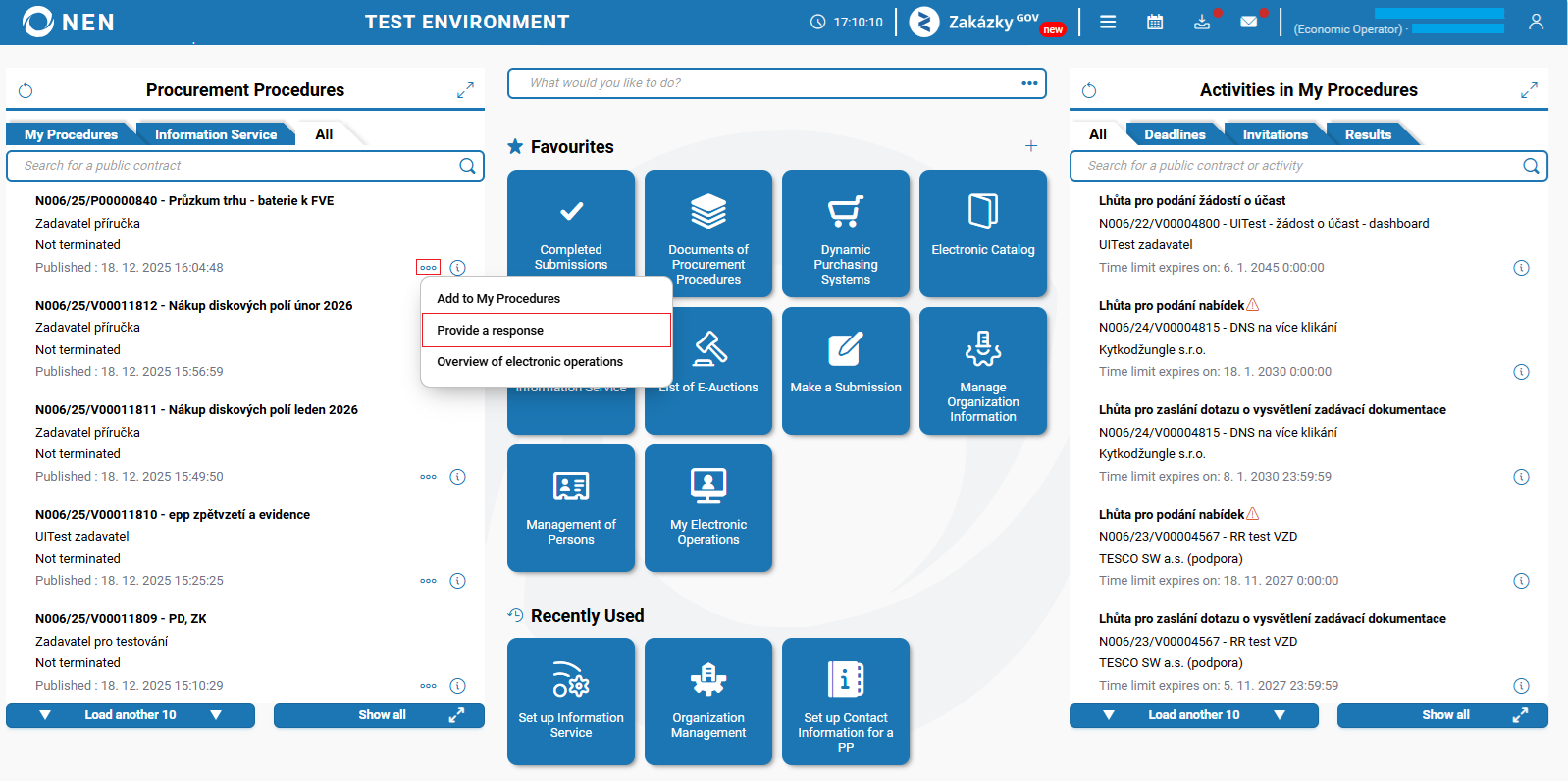
-
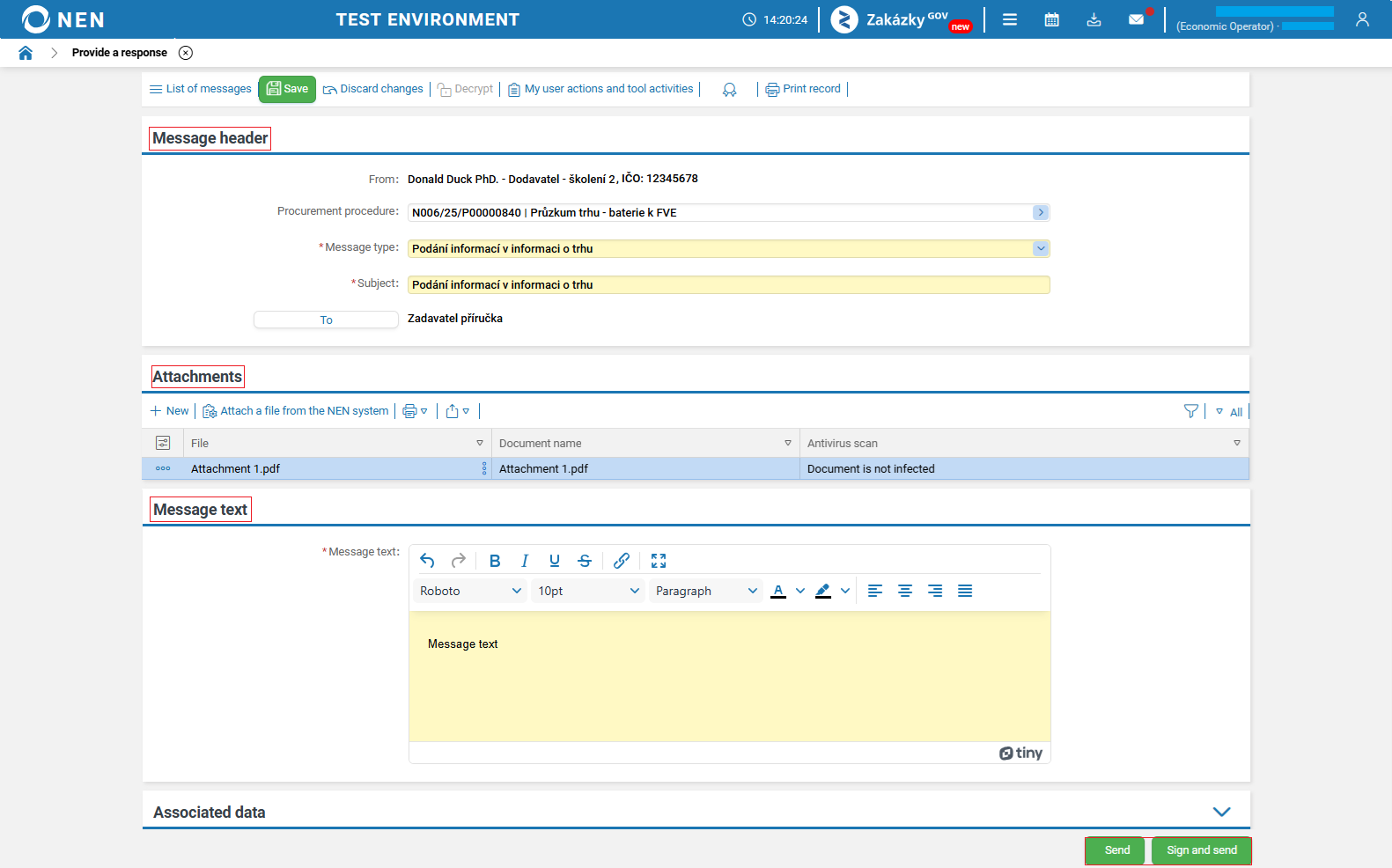
The "Provide a response" form is displayed. The sections "Message header" and "Message text" are already pre-filled in this form (you can modify the texts).
-
In the "Attachments" section, you can upload the necessary document/s. You can send the submission by the "Send" or "Sign and send" button. With the latter option, the NEN system will prompt you to insert the signature certificate. In this case, it is necessary to have the signature add-ons (for download here).
-
After sending, the submission date will be recorded, and you will see a green message stating "The message has been successfully delivered".

Submission of a design and documents
Submission of a design and documents
-
Search for the relevant procurement procedure and select the option "Submit a design".

-
After displaying the form, you will be automatically prompted to enter a password for encrypting the record - it is your arbitrary internal password (in case that you will create a draft and finish the submission later, it will be necessary to enter the password again). The encryption with the certificate from the contracting authority occurs automatically only when submitting the design.

-
In the form, in the "Information about the submission" section, the design name is automatically pre-filled but it can be changed. Changing the design’s name is not visible to the contracting authority and is solely for your better orientation. Information about encryption is also provided here.
-
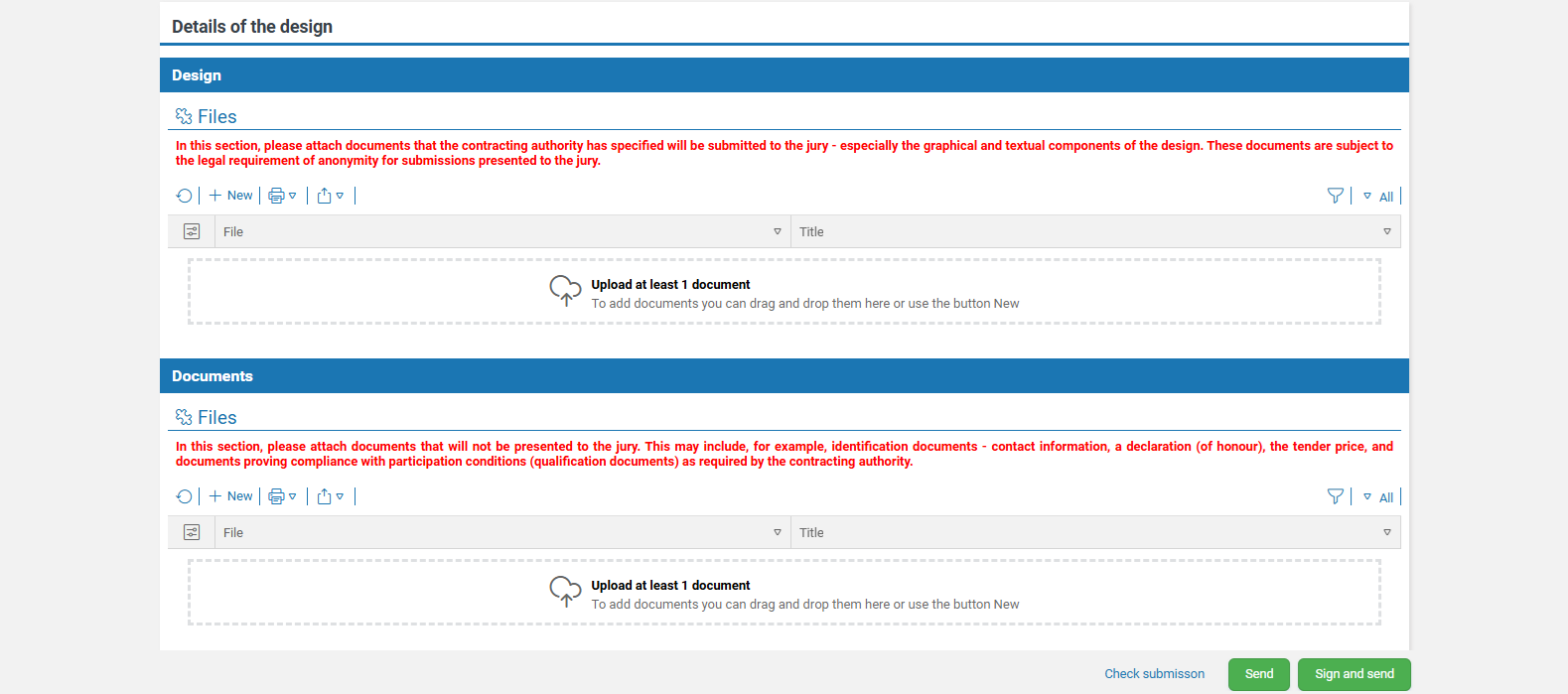
In the "Details of the design" section, upload files.
The content of the attached files is no longer possible to check after sending, only a list with the file names will be displayed. We recommend thorough verification before the actual submission.

Depending on the configuration of the design contest by the contracting authority, an additional section "Documents" may be displayed.
-
If the design is submitted by multiple economic operators, please record this fact in the "Association of economic operators" section.

-
After filling in all the necessary data, you can have your submission checked before sending it by clicking on "Check submission" at the bottom of the form. After filling in the form, you will confirm the submission by the "Send" or "Sign and send" button. With the latter option, the NEN system will prompt you to insert the signature certificate. In this case, it is necessary to have the signature add-ons (for download here).

If it is delivered via the NEN system, the moment of delivery is considered the moment of sending. However, this represents the moment of completion of the whole sending process, specifically, the receipt of the submission by the NEN system, not the moment the "Send" button is pressed. Therefore, we recommend that economic operators take steps leading to such an action well in advance.
-
Subsequently, a notification will appear where you need to confirm the submission by pressing the "Yes" button.

-
Encryption is done automatically, the NEN system pre-fills the encryption certificate from the contracting authority, and you only need to click on the "Encrypt" button.

-
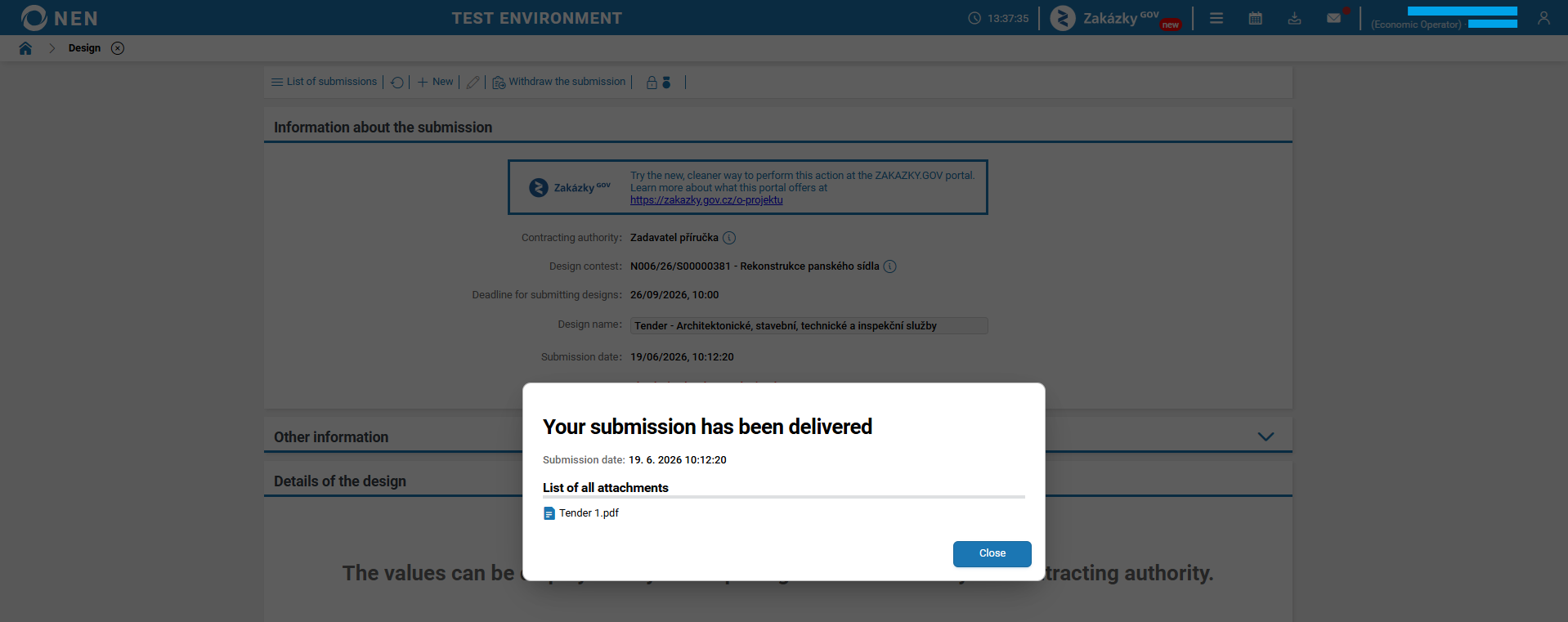
Then, information along with a list of the attachments and submission date and time will be displayed.
-
After sending the design, the submission date will be recorded on the form, the message "The design has been submitted." will appear, and the "Withdraw the submission" button will be displayed.

-
In the top toolbar, information about the used encryption certificate can be displayed for the encrypted design. This information is available only until the contracting authority decrypts the designs (opens the designs).

-
In the list of submissions, there is an overview of all submissions made available. The NEN system does not allow the submission of multiple designs.
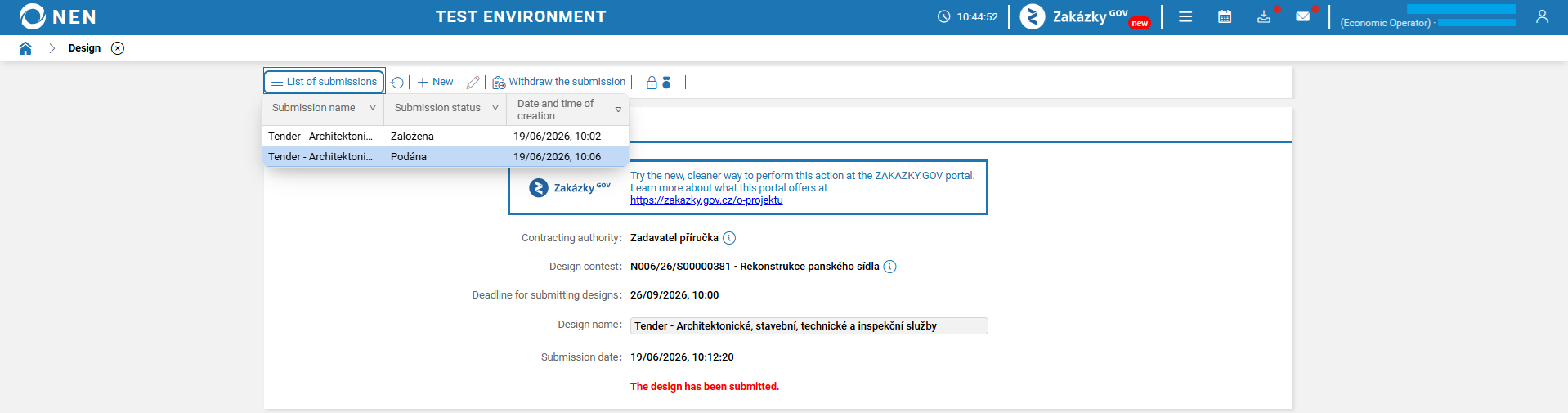
Submission via the Zakázky GOV portal
Submitting via the Zakázky GOV portal is integrated with the NEN system. If, in a procurement procedure, the information "Submission via the NEN System (application to participate, preliminary tender, tender, proposal) shall also be deemed to include submission made through the Zakázky GOV portal." is displayed in the "Submission specifications" section with the value "YES", you can submit to that procurement procedure via the Zakázky GOV portal. If this information is not displayed at all, submission via the Zakázky GOV portal is not possible.

The NEN system includes validation that prevents duplicate submissions in cases where a submission has already been sent via the Zakázky GOV portal. If you attempt to submit to the same procurement procedure in the NEN system, an informational message will be displayed with the text: "You cannot submit more than one bid. If you wish to change your bid, please use the withdrawal function. (NEN-481048)".
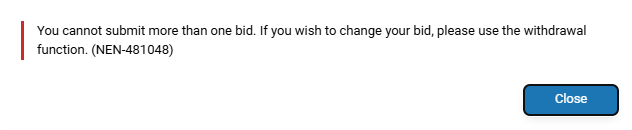
If a NEN System User makes an initial submission to a procurement procedure in the NEN system and subsequently submits again to the same procurement procedure via the Zakázky GOV portal by mistake, a notification message will be delivered informing them that a duplicate submission has been detected.