
The functionalities related to creating persons (NEN System Users) can be accessed through the "Management of Persons" tile. The creation of a new person is always associated with a specific organization and is performed by the "Entity's Administrator". By registering, the NEN System User obtains access permissions to the respective organization. In case a person is registered in multiple organizations, they will have multiple sets of access credentials.
You can search/ add the "Management of Persons" tile using the search bar "What would you like to do?" or the "plus" icon. After clicking on this tile, a form will appear where you can create new persons and subsequently assign their permissions in the NEN system.
Creation of a new person
Creation of a new person
Only the "Entity’s Administrator" and "Organization Department’s Administrator" can create new persons in the NEN system.
-
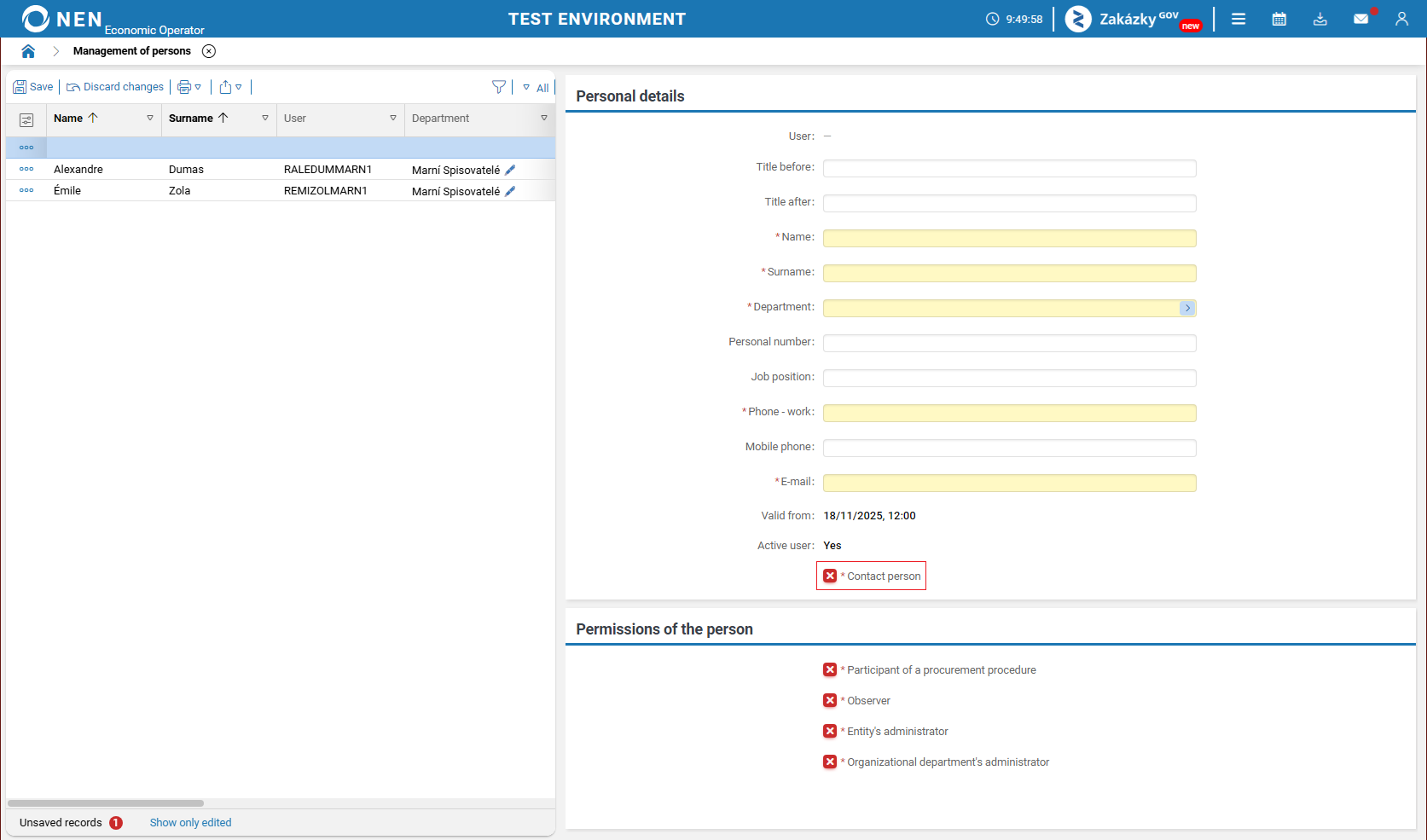
To add a new person, click on the "New" button in the upper left corner of the form and fill in at least all required fields (highlighted in yellow).
-
Simultaneously, you can designate a "Contact person" (this person will be included among the organization's contact persons in the public portal of the NEN system).
-
Verify the correctness of the entered email address.
-
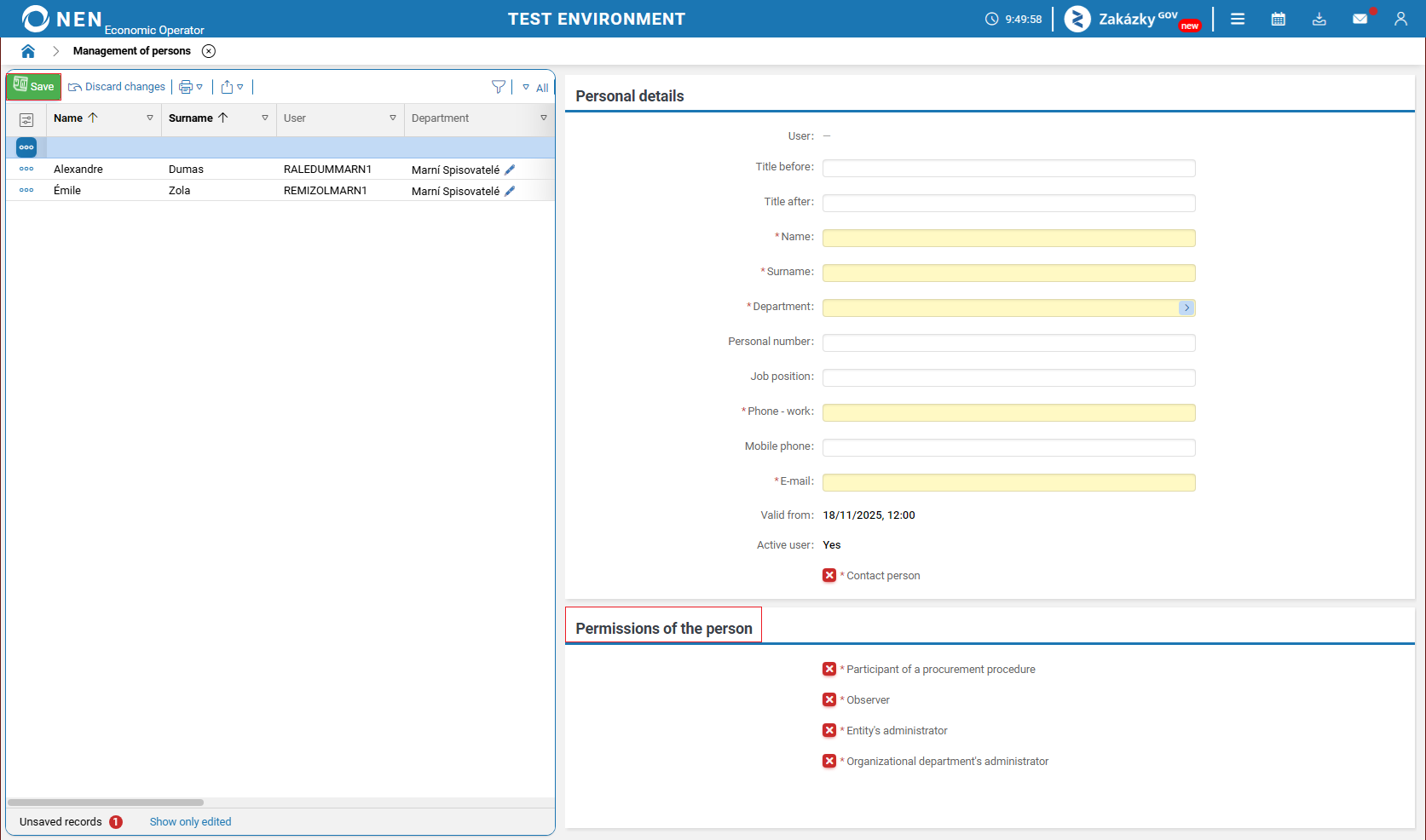
In the "Permissions of the person" section, set the role(s) you want to assign to the person.
-
Click on the "Save" button to complete the registration of the new NEN System User.
-
After a new user is created in the NEN system, instructions for completing the registration are sent to the specified email address. This email includes information about using the new unified sign-on method via the so-called NIPEZ Identity, which requires registration through the NIPEZ authentication and authorization component. The link for registering the NIPEZ Identity is available for 60 minutes. If an NEN System User clicks on a link that has already expired, the following message will be displayed: “The link is invalid or has expired. By clicking the ‘Send a new link’ button, a new link will be sent to the same email address”. The button can be used only once for each expired token.
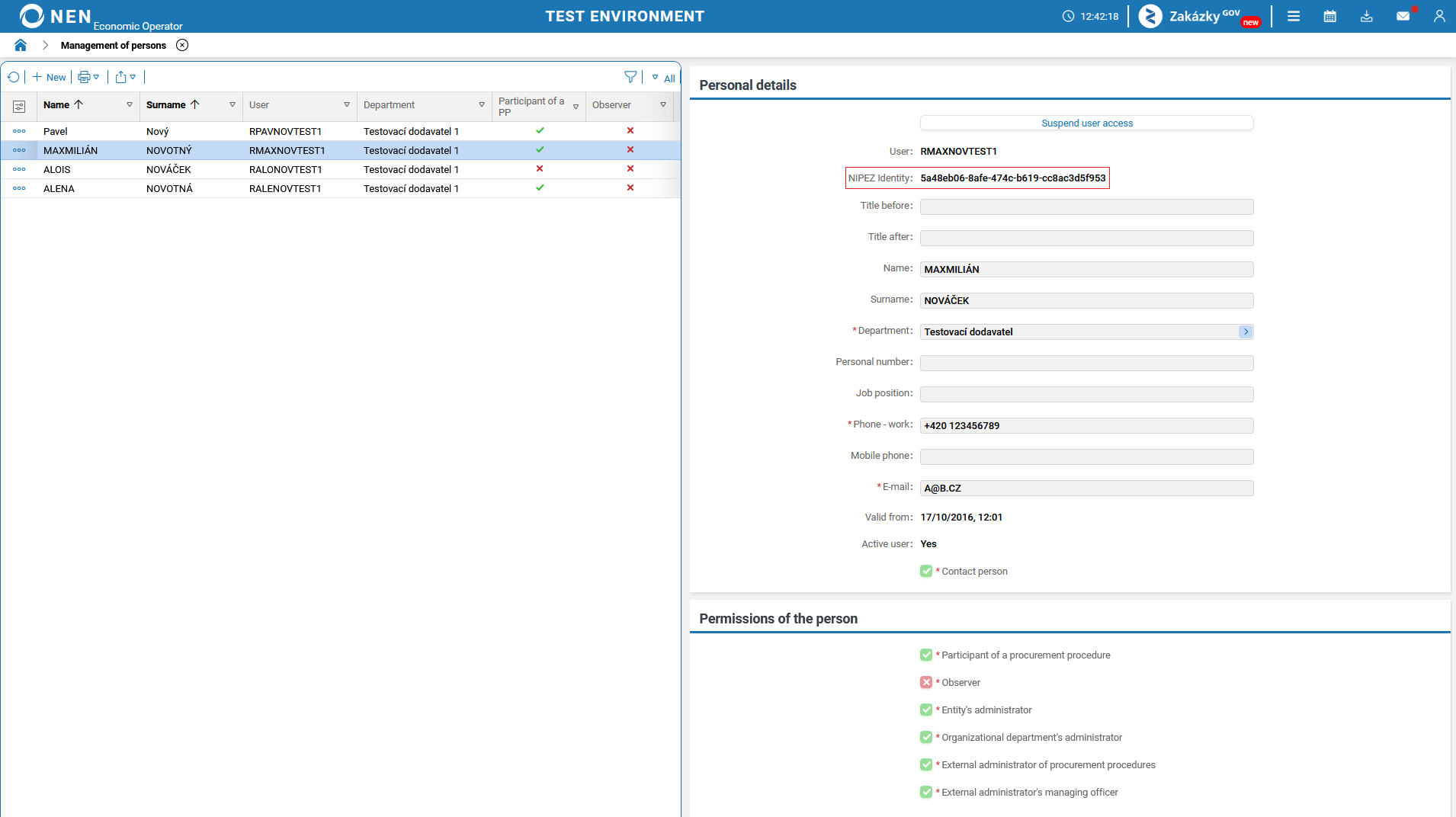
If an NEN System User logs in to the NEN system using the NIPEZ Identity, a non-editable attribute - NIPEZ Identity - will be displayed in the detail of the respective person.
Suspension of access and change of user password
Suspension of access and change of user password
The "Entity’s Administrator" can suspend access of a NEN System User to the NEN system. The suspension can subsequently be restored without the need to add a new person (NEN System User).
-
Select the respective person from the list on the left side, alternatively, you can use the "triangle" icon for filtering in case of a large number of persons.
-
After selecting the NEN System User from the list, the "Change user password" and "Suspend user access" buttons will appear on the right side of the form. Each NEN System User can also change their password themselves, using User Settings.
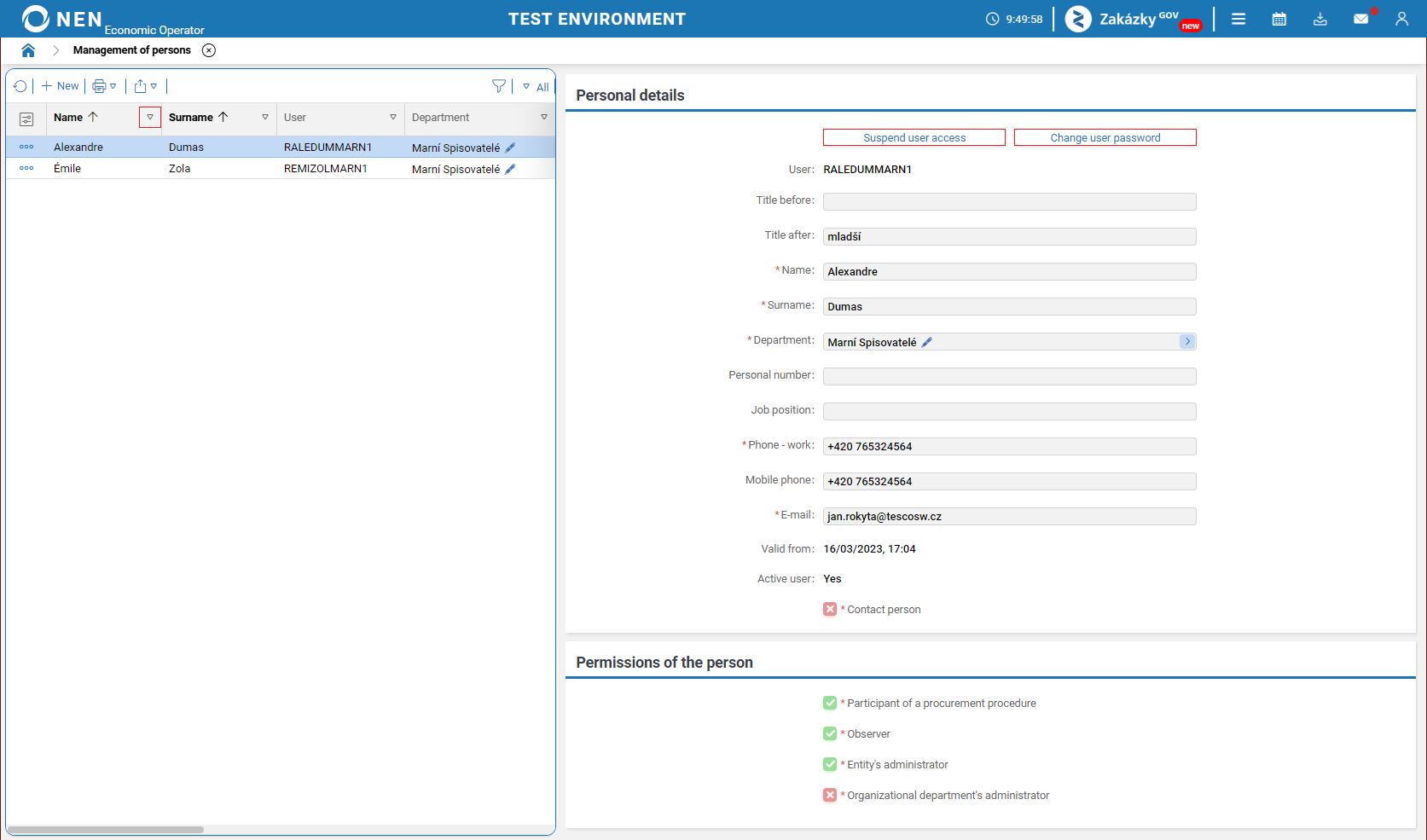
Changing the password for a NEN System User who logs in to the NEN system using the NIPEZ Identity is not possible. The “Change user password” button will not be displayed to the NEN System User.
-
If you want to restore access of the NEN System User whose access to the NEN system has been suspended, click on the "Restore user access" button next to their name.
If a user’s access within an organization is revoked, the user will, after logging in via the NIPEZ portal, be redirected to the selection of organizations in which they still have valid access. If the user no longer has valid access to any organization, an informational message will be displayed.
Migration of a user to the NIPEZ Identity
Migration of a user to the NIPEZ Identity
To perform the migration, the NIPEZ Identity must already be created. More information on registration in the NIPEZ portal can be found in the article Registration in the NIPEZ Portal.
When logging in using a username and password, users who do not have a linked NIPEZ Identity will be shown an informational message containing a link for linking the identity. This link will redirect you to the NIPEZ portal, where you must log in using your NIPEZ Identity.
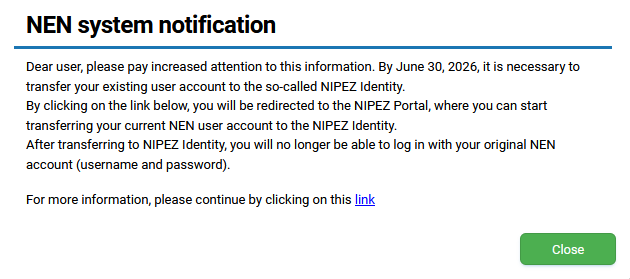
After logging in with the NIPEZ Identity, it will be linked to the user in the NEN system. From this point on, it will no longer be possible to log in to the NEN system using a username and password; logging in will only be possible via the “Log In with NIPEZ Identity” option.
After successful migration, an informational message will be displayed.
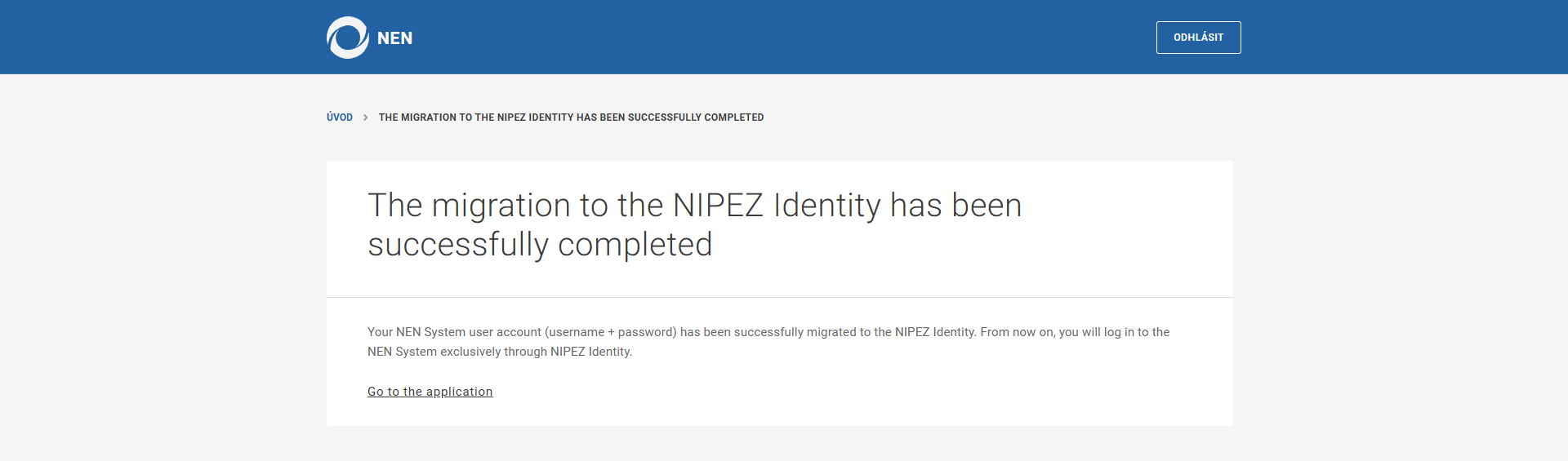
Linking a person to the NIPEZ Identity is mandatory. If this is not completed within the specified period, it will not be possible to perform any further actions.
If a new person is created within an entity on the NIPEZ portal, a corresponding new person is automatically created within the organization in the NEN system, with the “NIPEZ Identity” already assigned in their details. All users with the role of “Entity’s Administrator” are notified of the creation of this person via a notification message.
If a new person is created via the NIPEZ Identity portal, or if a person already exists within the organization with a linked NIPEZ Identity, a user in the NEN system with the role of entity’s administrator may link user persons who do not yet have a NIPEZ Identity via the “Management of Persons” tile.
Select from the list a person who already has a completed/linked NIPEZ Identity and click “Merging a person’s account”.
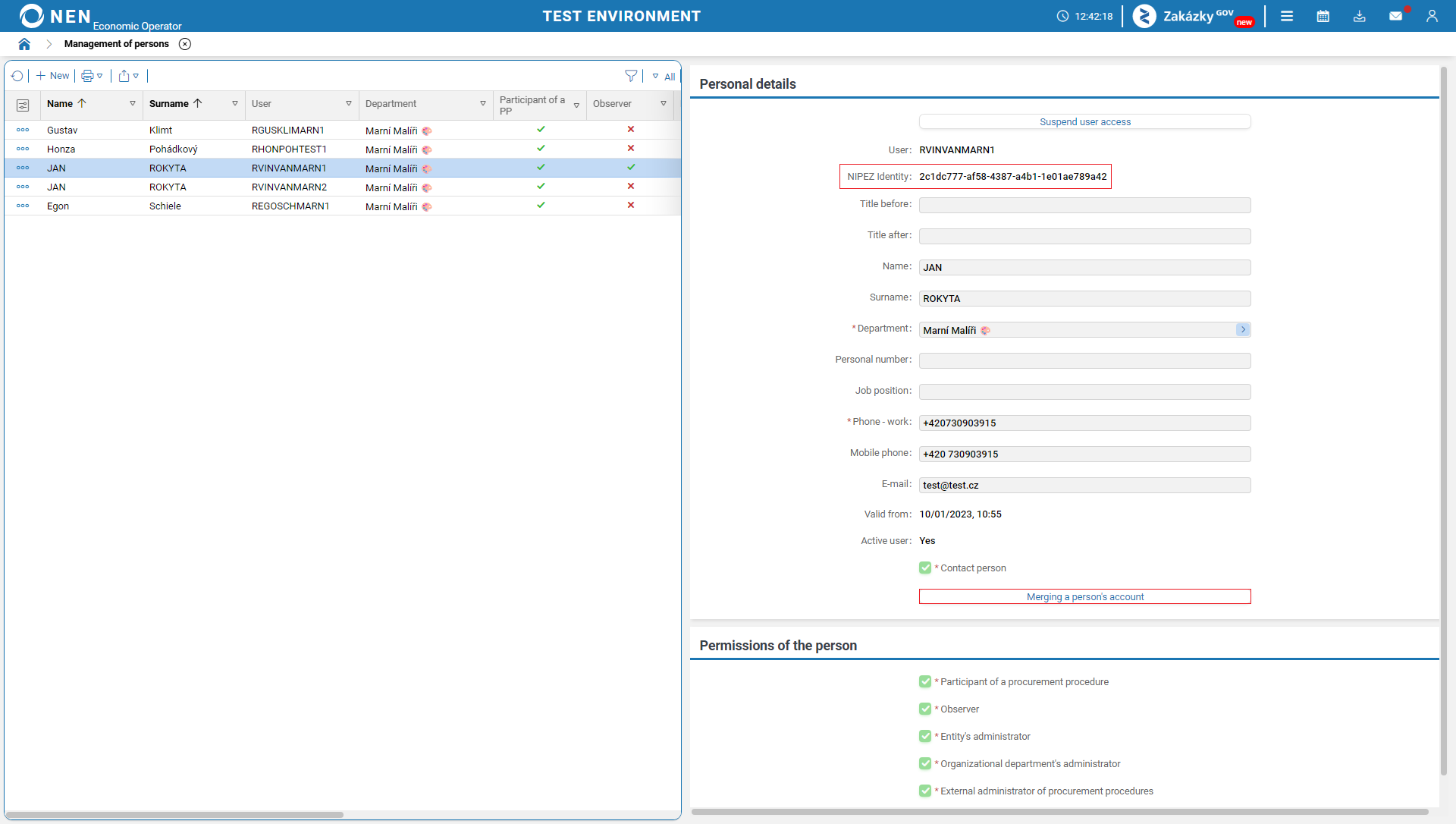
Then select from the list the user persons who will be linked to the selected person and their NIPEZ Identity by clicking the “Merge” button.
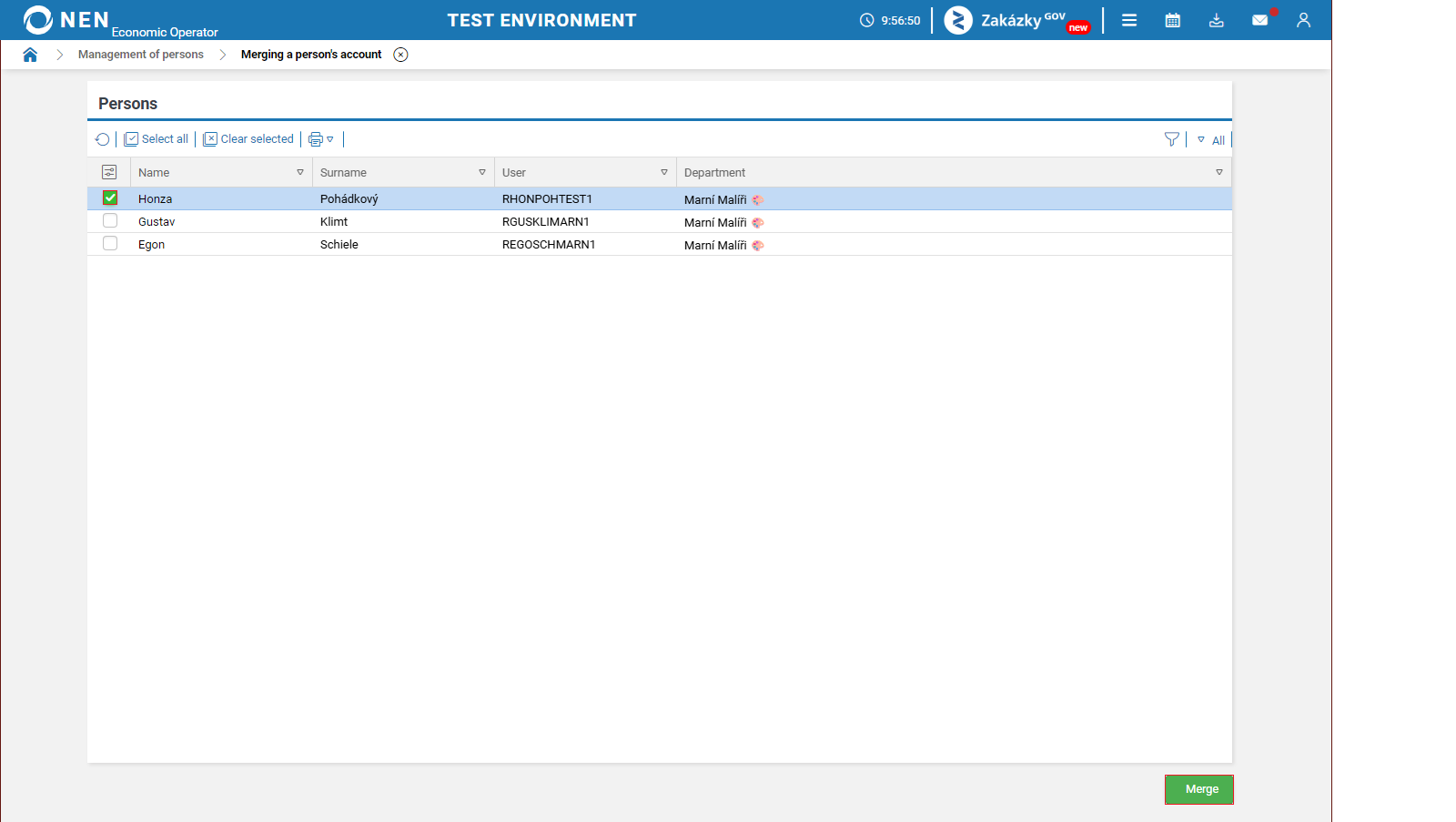
Linking can only be performed before permissions are assigned in the NEN system.